
Digital confirmations should be part of booking, not another detail families have to chase. A Dance Studio Client App can bring class reservations, seasonal enrollment, digital registration, and payment confirmations together in a clearer process for students and parents.Families expect a smoother e...

Digital confirmations should be part of booking, not another detail families have to chase. A Dance Studio Client App can bring class reservations, seasonal enrollment, digital registration, and payment confirmations together in a clearer process for students and parents.
Families expect a smoother experience: they want to see class details, submit registration information, and know what happened after they booked or paid. Studio staff need a reliable way to keep those steps organized, especially when enrollment opens and schedules fill quickly.
This article explains how client apps support class booking and seasonal enrollment, what digital registration can include, and how payment confirmations fit into the process. You’ll also learn which app features help students and parents manage their studio experience on a phone, and what to consider when choosing a system. The goal is to make each step easier to follow, from finding a class to receiving confirmation.
• Use a mobile-friendly booking experience to help students and parents find class details and manage their studio profiles.
• Make seasonal enrollment easier to follow by presenting schedules, fees, instructor details, and registration forms together.
• Give families clear digital confirmations so they can see what happened after submitting registration or payment.
• Review the booking steps from a student’s perspective to spot confusing forms or gaps in the confirmation process.
• Choose studio software that brings class scheduling and payment management into one workflow for your dance business.
Parent accounts and multiple student profiles work best in apps that support linked family profiles. To launch a client app, add studio details and schedules, test booking and registration, then introduce it during registration, check-ins, and classes.
A mobile app gives students and parents a convenient place to view studio information and manage their accounts. A mobile-friendly browser option also serves families who prefer opening a page instead of installing an app. Compare both routes by checking whether clients can easily reach class details, schedules, and profile tools. Keep the studio name and instructions consistent across the app and browser.
Before launch, map the client journey from opening the app to finding a class. For example, a parent should be able to identify the correct studio, review the schedule, and reach the relevant student profile. Clear labels matter. A studio can also update its app instructions when schedules or registration details change.
• Use consistent studio details across mobile and browser access.
• Test the schedule and profile paths from a client’s perspective.
Mobile class booking lets students review classes and reserve a place from their phones. Student profiles keep relevant information organized, while parent accounts can link a parent to multiple children’s profiles. When comparing dance studio apps, look for explicit support for family or parent accounts and linked profiles, then assess how easily a parent can switch between students.
Try a realistic booking scenario before opening the app to families. A parent might need to find a class for one child, then review another child’s details without creating separate logins. Check whether the app displays the schedule clearly and gives each student a distinct profile. These details make routine bookings easier to manage.
• Review the booking flow using a parent account and multiple profiles.
• Check how a student’s profile appears alongside class information.
Staff-facing mobile tools can help instructors and studio managers work with schedules and client profiles while away from a desk. Authorized teachers may also use mobile-friendly workflows to record attendance. Some dedicated staff apps support credit card payments, so review which roles can access payment tools and how those tools fit your studio’s workflow.
Managers can use mobile tools to review operational details and communicate updates to students or parents. For example, a schedule change can be reflected in studio communications, while a message can promote an upcoming event. Separate staff and client needs: instructors need practical class and attendance workflows, while families need clear booking and account access.
• Match staff permissions to their responsibilities.
• Test schedule, attendance, and payment workflows before staff use them.
Authorized teachers can record attendance through mobile-friendly workflows. Booking systems can also manage waitlists and cancellations through configured options, so review how each action updates enrollment.
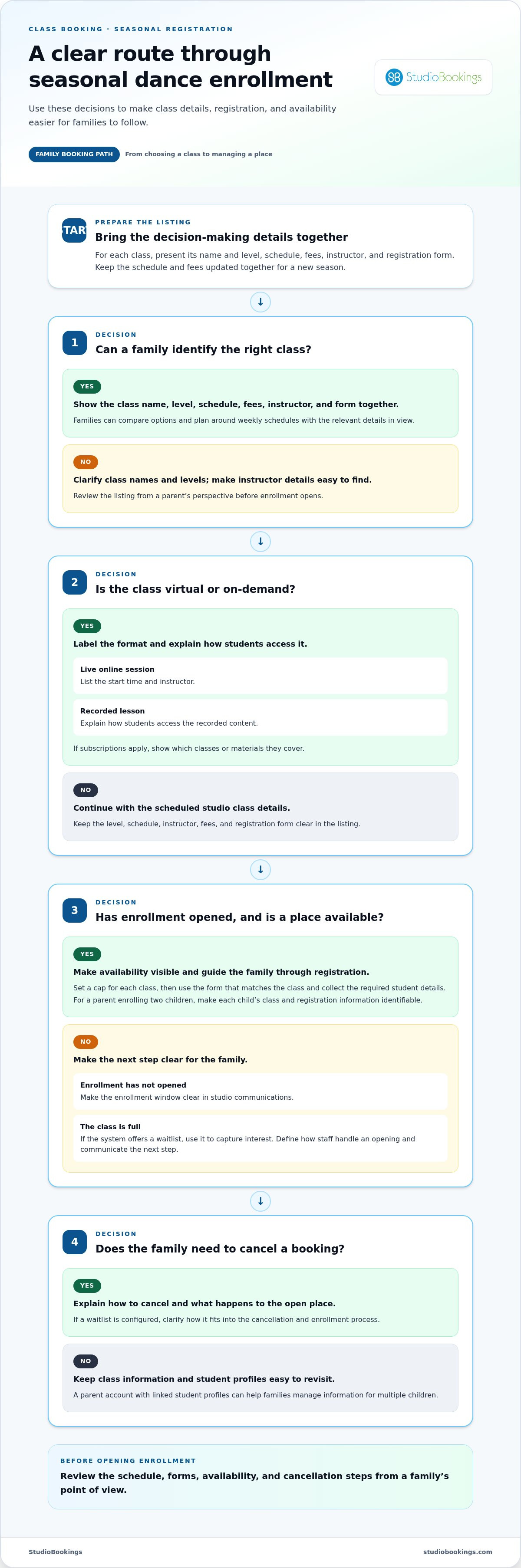
A useful class listing brings together the details families need to decide: class name, schedule, fees, instructor, and registration form. For example, a parent comparing beginner ballet with intermediate jazz needs to see the level and instructor before enrolling. Clear details help students choose suitable classes and help families plan around weekly schedules.
Include the format as well as the class description. If you offer virtual or on-demand dance classes, label them clearly and explain how students access each format. Distinguish live online sessions from recorded lessons, and state whether enrollment uses a subscription or individual registration. Students can then track their progress against the format they chose.
Seasonal enrollment works best when the schedule and registration steps follow a consistent path. Start by publishing each class with its dates, instructor, fees, and form. Then organize registration so families can find the right level and submit the required student details. A parent enrolling two children, for instance, should be able to identify each child’s class and registration information.
Before opening enrollment, review the schedule from a family’s perspective. Check that class names distinguish levels, instructor details are easy to find, and registration forms match each class. For a new season, update the schedule and fees together, then make the enrollment window clear in studio communications. This makes seasonal operations easier to follow.
Virtual and on-demand classes need their own scheduling details. List the start time and instructor for a live session, or explain how students access recorded content. If subscriptions apply, show which classes or materials they cover. These distinctions help students select the right registration path without mistaking an on-demand lesson for a scheduled studio class.
Enrollment caps keep class registration aligned with the studio’s chosen capacity. Set a cap for each class, then make availability visible during booking. When a class fills, a waitlist can capture interest for that schedule. Define how staff will handle an opening and communicate the next step clearly to families.
Cancellation workflows matter too. Explain how students or parents cancel a booking and what happens to the open place afterward. If the system offers a waitlist, staff can use it to manage interest in that space. Clear instructions reduce confusion for families and help instructors prepare an accurate class list.
Attendance tracking closes the loop between registration and class delivery. An authorized teacher can record attendance using a mobile-friendly workflow, and managers can compare the record with enrolled students. Reviewing the class list before a session, for example, helps staff spot booking changes and keep studio operations organized.
Yes. A dance studio app can support digital confirmations for registration and payments. The payment workflow depends on studio settings, the selected processor, and the configured payment method. Before launch, test a complete transaction and review what the member sees afterward.
For online payments, the studio must enable payments and configure an eligible processor and payment method. That setup determines whether a member can pay through the software. Test the member’s journey: open a profile, select an eligible class or service, enter payment details, and review the confirmation screen.
Confirmation content should make the completed action clear. For example, distinguish a submitted registration from a successful payment, and show the relevant class or member profile. If a transaction doesn’t complete, the screen should not suggest that payment succeeded. This distinction helps families understand what happened and gives staff a clear starting point for resolving questions.
Software plans can differ in their included tools, so compare features against your studio’s actual workflow. A studio focused on class booking may prioritize scheduling and registration. Another may need membership management, payment processing, or staff tools. Compare equivalent capabilities, not just plan names, when assessing options.
Software pricing depends on the case and is given after a quote request; cost factors include selected features, studio setup, and payment configuration. Review how each plan handles the tasks your team uses, including profiles, booking, and confirmations. A feature that sounds useful adds value only when it supports a real operational need.
Packages and dynamic pricing describe different pricing approaches. A package groups a studio’s chosen services or access into a defined offer. Dynamic pricing changes the amount according to conditions set by the business. If a studio uses either approach, show the applicable terms before payment and ensure the confirmation reflects the selected option.
For example, a member choosing a package should be able to identify what it includes. A studio using changing prices should make the amount visible before the member submits payment. Clear presentation reduces confusion between the listed offer and the transaction record. It also gives staff a consistent basis for reviewing payment questions.
Test each confirmation path separately: registration without payment, registration with online payment, and any package purchase. Review the member-facing result and the studio’s transaction record. Then check that notifications and profiles match the completed action. This step-by-step test helps identify setup gaps before families rely on the app.
Keep the test practical. Use a representative class, a sample member profile, and the payment method configured for studio use. Confirm that the displayed amount matches the selected offer and that the message identifies the transaction clearly. These checks connect pricing, payment setup, and digital confirmations in one reliable workflow.
Digital registration can bring a family’s enrollment details and payment steps into one platform. The studio’s settings determine whether online payments are available.
Online payments are available when the studio enables payments and configures an eligible processor and payment method. Before opening registration, test the full sequence: complete a form, select the intended payment option, submit it, and review the confirmation. This shows whether families can distinguish registration from payment status.
For automated billing, make the billing arrangement clear before a parent submits payment. A member should understand what they’re paying for, such as class enrollment or an agreed recurring charge. Keep confirmation messages aligned with the completed action, and make the next step clear if payment hasn’t gone through.
Payment records help studio staff connect a transaction with the right student or parent profile. For example, a family enrolling siblings needs a clear way to identify which registration a payment relates to. Review how the platform displays transaction details, and make sure staff can distinguish completed payments from registrations that still need attention.
Parents may also use a studio’s digital store, where that option is available, to purchase items or services. Make the selected item and its payment status clear in the confirmation. For a recital, for instance, families should be able to distinguish a costume purchase from a class payment. Clear records support smoother account reviews and fewer mix-ups.
What privacy and payment security risks should studios consider? Review how the platform handles parent and student profile access, payment processing, and transaction records. Limit profile access to appropriate users, and make sure families can see what information a form requests before submitting it.
Registration forms should collect details relevant to the studio’s process. A recital signup, for example, may need different information from a weekly class registration. Keep access to student profiles appropriate to each user’s role, and avoid displaying one family’s information to another. Clear permissions and focused forms help reduce unnecessary exposure of personal details.
Payment security also depends on the configured processor and method, not simply on a confirmation message. Treat confirmation as a record of the platform’s reported outcome, then review the corresponding transaction record in studio operations. Make the receipt easy for parents to find after they download or open the app, and ensure it identifies the payment purpose.
Before launch, run a complete test using a sample registration. Confirm the form submission, payment result, profile association, and message received by the family. A seamless process connects each step without leaving parents guessing whether registration or payment succeeded.
Client booking apps give families a mobile way to find classes and manage schedules. Compare platforms by testing the same studio tasks, then assess how clearly each supports students, parents, and teachers.
A useful booking flow lets a student browse classes, review the schedule, and make a reservation. Look at the complete path, from finding a class to seeing its booking status. For example, a family should be able to distinguish beginner ballet from advanced ballet before choosing a time.
Check how clients find schedule changes. Studio apps can use notifications to share upcoming events or promotions, while an accessible schedule helps families plan around classes. Communications should match the information students see in the app. If a teacher’s class changes, update studio messaging so families receive a consistent notice.
Test the process with a parent account and student profile. Follow a booking, review the schedule, and try a cancellation. This reveals whether families can manage routine changes easily without contacting staff for every step.
Compare platforms by building a checklist around your studio’s client and staff workflows. Include class booking, schedule access, parent and student profiles, notifications, payment confirmations, and teacher access. The right fit depends on which tasks your studio wants families and staff to complete through mobile tools.
Use the same example for every platform: a parent finds a class, books it, checks the schedule, and locates the booking confirmation. Then review how a teacher accesses class details. Testing the same tasks makes differences easier to spot without relying on feature names or broad rankings.
Consider setup and everyday operations too. How will staff communicate schedule updates? How will families learn the booking process? Review the workflows that matter most, then compare options such as Jackrabbit Dance and DanceStudio-Pro against those needs. Prioritize the actual experience over a long feature list.
Also test repeat visits. Families may return to check their schedule, manage profiles, or find event information. Map these tasks before choosing, then see whether clients can complete them clearly without staff assistance. A simple path for repeat use can matter as much as the initial booking.
Use a real studio workflow to assess your booking process and explore dance studio booking tools.
StudioBookings offers Pole and Dance Studio Software to bring class schedules, memberships, payments, and staff management into one cloud-based dashboard. If you’re ready to connect the booking experience with studio operations, it’s a natural next step. The mobile app serves both studio owners and members, and the platform also supports yoga, Pilates and barre, and fitness and HIIT studios.
Consider it when separate tools make it harder to manage classes and payment workflows together. StudioBookings offers a free trial and no-contract pricing, so you can explore the software without committing to a contract.
Visit studiobookings.com to explore StudioBookings.
Your next step is to map the booking journey families use today. Identify where they pause, what staff handle manually, and which updates cause the most confusion. That gives you a practical starting point for choosing a Dance Studio Client App that fits your studio’s actual workflow.
When you’re ready to connect class management with day-to-day operations, StudioBookings offers software for dance, yoga, Pilates and barre, and fitness and HIIT studios. Choose the tools that align with your business, then consider how they can support the experience you want students and families to have.
Contact StudioBookings to discuss your needs and take the next step toward a more manageable studio routine.
A Dance Studio Client App gives students and families a mobile way to interact with a studio. Depending on the platform, clients may book classes, view schedules, manage profiles, and receive updates. For example, a parent account can help organize details for multiple children. Studio teams may also use mobile tools for schedules, attendance, and client records, keeping student and staff workflows connected.
The best app depends on your studio’s workflows and the experience you want families to have. Compare dance studio platforms by testing the same tasks in each: finding a class, managing a family profile, and reviewing a booking. Also assess whether the system supports your studio’s staff and payment processes. A consistent comparison helps you focus on practical fit rather than feature names alone.
Pricing for other plans is tiered according to active members or required features. To compare software costs, identify the plan structure and tools your studio needs, then consider expected membership and daily operations. One plan’s price shouldn’t be treated as a universal rate across different software providers.
Clients can make online payments and purchase online class passes through StudioBookings, with Stripe and PayPal integration. Members can save multiple payment cards and choose a primary card. A saved card doesn’t necessarily mean recurring tuition payments are scheduled, so distinguish stored payment details from autopay. For class-pass purchases, make the selected pass clear before clients complete payment.
Some dance studio platforms offer mobile apps, but an iOS or Android app doesn’t necessarily mean a separate app branded specifically for each studio. StudioBookings provides an iOS and Android app for owners and members at no extra cost. If studio-specific branding matters, distinguish that requirement from access to a shared platform app when comparing options and client experiences.