A software announcement email works best when it quickly explains what’s new, why it matters, and what readers should do next. An effective email template for announcing new software gives you a clear structure for sharing the product name, key benefits, launch details, and a relevant call to action...
A software announcement email works best when it quickly explains what’s new, why it matters, and what readers should do next. An effective email template for announcing new software gives you a clear structure for sharing the product name, key benefits, launch details, and a relevant call to action.
You may have useful news to share, but a long feature list can leave readers unsure what matters to them. Focus the message on what’s changing and how it helps customers, then make the next step easy to find.
This guide covers what to include, how to write a subject line that sets clear expectations, and how to shape messages for a new product, a feature update, or a software version release. You’ll also find practical templates and examples to help announce changes clearly without making the email feel like a technical bulletin.
• Match the email format to the announcement: a new product, a beta feature, an app release, or a software version update each needs different details.
• Make the customer benefit clear, then guide readers to one useful next step, such as trying a feature or signing up.
• Use a specific subject line that signals what’s changing and why the message matters to the recipient.
• Share version release notes and practical upgrade instructions so users know what to expect and how to move forward.
• Choose your audience and timing with care, and keep minor fixes from crowding out updates customers will value.
To write a customer email announcing new software, explain what’s changing, who it helps, and what action to take. Identify the team behind the update, connect its benefits to a customer need, and give readers a clear next step.
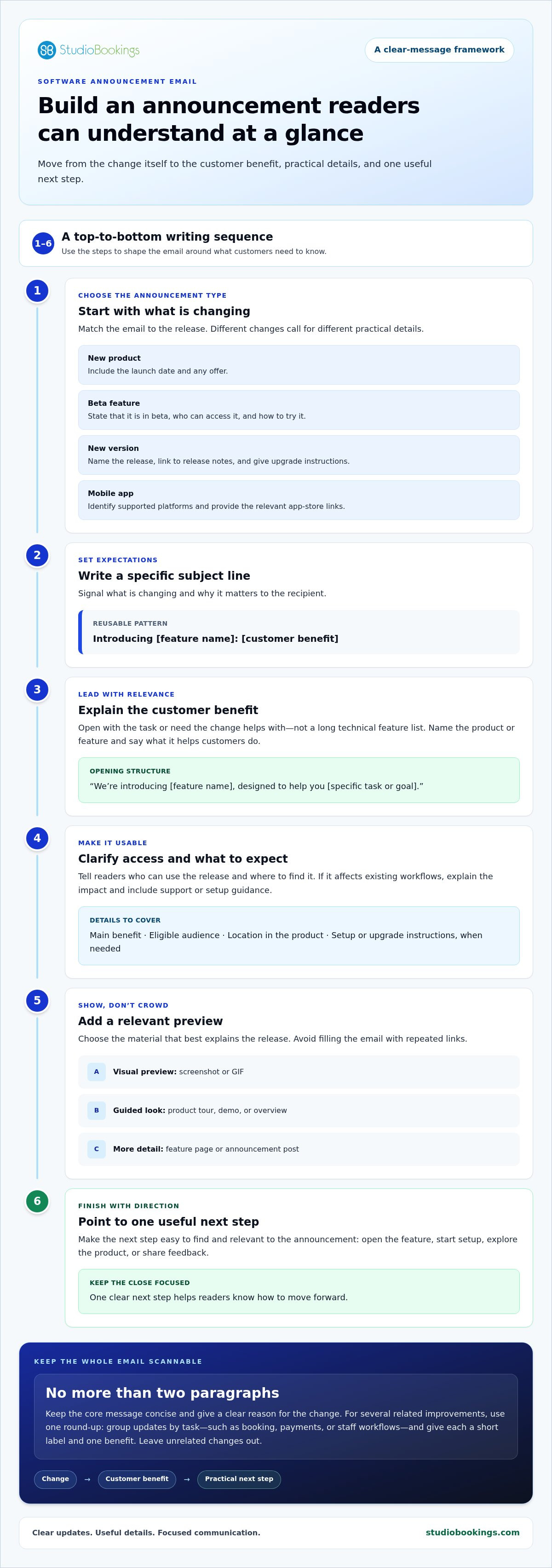
Keep the core message focused: the recommended product update email is no more than two paragraphs, with a clear reason for the change. Lead with the customer benefit instead of a technical feature list.
For several related improvements, send a round-up rather than separate messages for every small update. Group items by the task they improve, such as booking, payments, or staff workflows. Give each update a short label, one benefit, and a link to details. Keep unrelated changes out so readers can quickly spot what matters to them.
Make each feature easy to understand and use. A launch message can introduce the product, highlight its key features, and link to its product page. For a new feature, explain its benefit and where customers can access it. For an integration, describe what connecting the tools enables, then give setup steps. A launch newsletter can organize these details into three sections: the announcement, the customer benefit, and the next action.
Link a button to a guided product tour, so readers can explore the workflow themselves.
Link a short demo or overview alongside the feature announcement, then direct customers to setup instructions.
Ask readers to choose which feature they want explained next, using a poll or a reply request.
For a launch email, test different calls to action, such as “Explore the new platform” and “See how it works.” Add social sharing buttons if readers may want to pass the announcement along.
Situation: A project-planning team releases a new dashboard. Action: Its email highlights how the dashboard brings project tasks together and links to a product overview. Result: Readers understand its purpose and can choose whether to explore further.
Situation: A scheduling service adds a calendar integration. Action: The announcement explains the workflow benefit and gives setup steps. Result: Customers know what the integration does and where to begin.
Situation: A software team releases several related improvements. Action: It groups them in one concise round-up, with a clear benefit and detail link for each. Result: The update stays scannable without turning minor changes into separate announcements.
A useful announcement gives readers the details they need to understand the change and act on it. Include the product or feature name, its status, the customer benefit, access instructions, and one clear next step. For a new product, add its launch date and any offer, then invite readers to pre-order or sign up. An email template for announcing new software can organize these details without making the message feel like a specification sheet.
What risks or concerns should a new software announcement address? Explain who can access the release, whether a feature is still in beta, and what users need to do. If the change affects existing workflows, describe the impact and provide support or setup guidance so customers aren’t left guessing.
Use this reusable feature announcement template, replacing each bracketed detail with accurate information. An email template for announcing new software should also leave room to tailor the benefit and instructions to the audience:
Subject: Introducing [feature name]: [customer benefit]
Opening: We’re introducing [feature name], designed to help you [specific task or goal].
Details: You can use it to [main benefit]. It’s available to [eligible audience] in [location within the product].
Preview: Explore [screenshot, GIF, demo, or overview] to see how it works.
Next step: [Open the feature page, start setup, or share feedback].
A feature email can include a screenshot or GIF preview, a feature-page link, an announcement-post link, and a demo video or overview link. Choose the items that explain the release best, and avoid crowding the email with repeated links. The feature name should describe its purpose in familiar language. Label its status plainly, such as “available now” or “beta,” so readers know what they’re seeing.
Name the release, link to release notes, and give upgrade instructions.
Identify the beta status, explain who can access it, and show how to try it.
State which platforms the app supports and provide the relevant app-store download links.
For an app announcement, keep platform details close to the download action. Readers should know whether the app works on their device before following the link. For a beta, make the access route explicit, such as an invitation or an in-product setting. That detail can prevent confusion and help users give useful feedback.
Example, beta feature: Situation: A planning tool introduces a beta calendar view. Action: The email names the beta, describes how it helps users review upcoming tasks, and explains where invited users can open it. Result: Recipients can tell whether they have access and what to try.
Example, app release: Situation: A service launches a mobile app for existing customers. Action: The announcement identifies supported platforms, gives store links, and states the app’s main use. Result: Readers can choose the right download and understand its purpose before installing.
For studio teams announcing software changes, a clear feature message can support a smoother member experience. Explore studio management software as you plan the tools behind your next update.
A software announcement subject line should tell readers what changed and why opening the email may help. Make it specific to the release, feature, or audience. “Introducing a faster way to review class bookings” signals a benefit, while “Product news” is vague. The subject sets an expectation, and the email should deliver on it. Pair it with an email template for announcing new software that carries the same promise into the message.
Start by choosing the announcement’s main purpose. Is it introducing a new product, explaining a feature, or alerting users to a version release? Put that information near the beginning, then add a customer benefit where space allows. For example, “New calendar integration: keep appointments in sync” names the change and explains its purpose. Avoid cramming several features into one subject line.
Audience matters, too. A subject for current customers can assume they recognize the product, while a prospect may need more context. Compare “Your new reporting view is ready” with “Introducing reporting tools for clearer business insights.” The first speaks to existing users; the second gives new readers more context. Segment recipients to keep each subject relevant.
Use plain, accurate language. Name a beta feature as a beta, and don’t imply a release is available if access is limited. Skip vague teasers such as “Big news is coming” when you can explain the update directly. If a release requires action, say so: “Review your account before upgrading” is more useful than “Important update.”
Draft several options from different angles, then compare them for clarity. A benefit-led version might say, “Spend less time on manual scheduling.” A feature-led version might say, “Introducing the new scheduling dashboard.” A version-led option could read, “Version update: see what’s changed.” Each promises a different focus, so make sure the email body matches the subject. An email template for announcing new software can keep the message aligned with that focus.
Replace “New improvements” with “New filters make reports easier to review.”
Use “Beta access” when the feature is still in beta.
Tell invited users when access is limited to a group.
Pair “Explore the new dashboard” with an email that shows where to find it.
Example, product launch: Situation: A software team introduces a new dashboard. Action: It uses “Introducing your new dashboard” rather than a broad teaser. Result: Readers can identify the announcement topic before opening the message.
Example, limited beta: Situation: A team gives selected customers early feature access. Action: It writes “Your beta access to calendar view” and explains eligibility in the email. Result: Recipients can distinguish the beta invitation from a general release announcement.
Example, version release: Situation: A software update includes changes users may need to review. Action: The team uses “Version update: review the release notes” and links that promise to the email’s next step. Result: The subject prepares readers for a practical update instead of suggesting a new product launch.
Choose the format based on the change’s purpose, impact, and audience. A new product launch may call for a short email sequence; a small improvement may fit a regular update. If the change affects only one customer group, segment the audience instead of sending everyone the same message.
How should the email differ for internal users versus customers? Internal messages should explain team responsibilities, workflow changes, and where to find guidance. Customer emails should focus on the benefit, access instructions, and any action customers need to take.
For a product launch campaign, schedule at least three emails and begin sending them one to two weeks before the official launch. Send a teaser two weeks before launch, then a new-product announcement one week before launch. Use the remaining message to support the launch with useful details, such as product access or setup instructions.
A single announcement works better when the update is straightforward and requires little preparation. A sequence suits a major release that needs awareness, explanation, and a launch-day prompt. For example, a new reporting tool might need an introduction before launch, followed by instructions for opening the dashboard.
Segment by relationship and relevance. A feature announcement can go to the full audience, current customers, or a specific customer segment. Tailor the content, language, and style to each group. An existing user may need a direct access path; a prospect may need context about the product’s purpose.
when the release applies to everyone and has a clear benefit.
when access requires an active account or existing workflow.
when only certain roles or users can use the feature.
for minor improvements that don’t need a standalone announcement.
Keep minor fixes out of promotional messages if they may frustrate readers. Instead, set a consistent frequency for product update emails so subscribers know when to expect them. Reserve standalone emails for changes that give recipients a useful reason to engage or act.
Example, product launch: Situation: A team prepares to release a new planning tool. Action: It sends a teaser, a product announcement, and a launch follow-up, each with a distinct purpose. Result: Readers receive a staged explanation instead of one overloaded email.
Example, targeted feature: Situation: A new reporting feature serves account administrators. Action: The team sends setup instructions to that segment, while other users receive no feature-specific prompt. Result: The message reaches the audience that can use it.
Example, internal change: Situation: A version update changes how staff complete a task. Action: The internal email names the workflow change and points teams to instructions. Result: Employees can prepare before customers receive a benefit-focused announcement.
Announce software changes by naming the version, explaining the customer impact, and linking to release notes. Pair the announcement with training resources, such as a walkthrough, setup guide, or support page, so users can learn the changed workflow.
Start with what changed, not a general claim that the software is better. For example, “Version 4.2 adds calendar filters” gives readers a specific reason to continue. Follow with who benefits, what action is needed, and where to find instructions. If the upgrade changes a familiar task, describe the new steps plainly.
A useful release email separates essential information from technical detail. Put customer-facing improvements in the message, then link to complete release notes for readers who want more. If users need to upgrade manually, state the process and any preparation steps. Don’t imply an update is automatic unless it is.
Use the version label shown in the product, such as “Spring release,” and clarify its availability.
Connect each improvement to a task, such as finding a booking faster.
Link to release notes, upgrade instructions, or the relevant product area.
Include a help article, guided walkthrough, or training session details.
Use a subject line that matches the scale of the change. “Your software update: new calendar filters” sets a clear expectation. “Important: action needed for your account” suits a release that requires user action. Avoid urgent language for routine improvements; it can make future announcements easier to ignore.
Reusable version release template:
Subject: [Version or update name]: [main customer benefit]
Message: We’ve released [version name], including [specific improvement]. You can use it to [customer benefit]. To get started, [upgrade or access instruction]. See the release notes for the full change list, and use [training resource] to learn the updated workflow.
Choose the audience based on the release’s impact. Send a targeted note when it changes a workflow used by a particular group. Use a broader update when the improvement applies across the product. Keep minor bug fixes in release notes or a regular round-up if a separate email would distract readers.
Example, changed workflow: Situation: A version release changes how users edit schedules. Action: The team explains the new steps and links to a walkthrough. Result: Readers have a practical way to learn the updated process.
Example, routine improvements: Situation: A release includes small fixes that require no customer action. Action: The team adds them to its regular update and links to release notes. Result: The email highlights useful changes without overstating their impact.
Example, upgrade required: Situation: Users must act to access a new version. Action: The subject line states what to do, and the email gives upgrade instructions and support guidance. Result: Recipients know what to do and where to get help.
Planning a software update for your studio? Explore studio software options that support your day-to-day operations.
StudioBookings helps studio owners manage classes, memberships, payments, and staff from one cloud-based dashboard. If you’re preparing software updates for a yoga studio, it brings those everyday operations together, connecting your announcements to the tools your team and members use.
StudioBookings offers software for yoga, Pilates and barre, fitness and HIIT, and pole and dance studios. Choose the studio software that fits your business, then use clear customer updates to explain changes and guide people through new workflows.
Visit StudioBookings to explore software for your studio.
Your next announcement can do more than report a change. Use it to build a clear communication habit: explain why an update matters, show how it fits into customers’ routines, and make the next step straightforward. An email template for announcing new software gives your team a starting point, while audience-specific details keep each message relevant.
If studio operations are part of the change you’re planning, StudioBookings offers software for yoga, Pilates and barre, and fitness and HIIT studios. These tools bring key studio tasks into one management system, giving you a practical foundation for future updates to staff and members.
Ready to explore how software could support your studio? Contact StudioBookings to discuss your next step. You can build a smoother experience for your team and customers, one clear change at a time.
Tell recipients what changes for them and what they need to do before using the software. For a phased rollout, specify which team or account group gets access first, the start date, and where to report issues. Include a named internal owner or support channel, plus a fallback process if a critical task is interrupted. This helps users move from announcement to adoption with fewer unanswered questions.
Include the product name, launch date, primary use, customer benefit, access details, and one call to action. For example: “Introducing [product], available [date] to help [user group] [complete task]. Explore it in [location] or sign up here.” If there’s an introductory offer, explain its terms clearly. Use the same product name in the subject and message for consistency.
Choose a subject that identifies the release and any action readers need to take. Examples include “Your workspace moves to [new version] on [date]” and “Action required: choose your new sign-in method.” For an optional feature, try “A new way to organize [task] is ready.” Put the product or task near the start, and avoid unexplained internal version codes.
Describe what a feature does, then connect it to a customer task or goal. For example, explain that a saved report filter lets users return to a preferred view without rebuilding it each time. Add a short note about where to find the feature and who can use it. This gives readers practical context without requiring them to interpret technical release terminology.
Give the launch date and, for a timed release event, its time zone. Explain who can access the software, how they’ll sign in, and whether setup requires action. If setup involves steps, list them in order and name the screen or menu where each begins. That way, users can prepare before launch instead of searching through the product afterward.
Use a warm, direct tone that respects the reader’s time. Keep the main update to no more than two paragraphs and give a clear reason for the change. A simple improvement may need only a brief explanation and action; a complex workflow change can link to a separate guide. Avoid inflated claims and use familiar terms your audience already understands.