
If you're weighing what to do when you outgrow spreadsheets, explore alternatives when three or more readiness questions point to recurring problems. Custom software can work with Microsoft 365 and other existing business tools, while off-the-shelf software may suit a more standard workflow. The rig...

If you're weighing what to do when you outgrow spreadsheets, explore alternatives when three or more readiness questions point to recurring problems. Custom software can work with Microsoft 365 and other existing business tools, while off-the-shelf software may suit a more standard workflow. The right fit depends on how your team works and the decisions your reporting needs to support.
Spreadsheets can still be useful for quick calculations and analysis. But if staff spend more time checking formulas, tracking versions, or copying data than using the results, the process may be holding you back. Replacing every spreadsheet at once isn’t the only option.
This guide explains how to spot the limits that matter, simplify migration by moving one process at a time, and compare off-the-shelf and custom software. You’ll also learn how to assess integrations, reporting needs, and workflow fit so you can choose a practical next step without losing the flexibility spreadsheets provide.
• Consider alternatives when three or more readiness checks signal recurring spreadsheet problems, such as spending over 5 hours per week on manual reporting.
• Look beyond file size: slow opening, conflicting versions, and delays in getting reliable figures can also show that a spreadsheet process is under strain.
• Map the decisions and workflow behind a spreadsheet before replacing it, then migrate one business-critical process at a time.
• Choose software around your reporting needs and existing tools. Off-the-shelf software can suit standard workflows, while custom software can fit business-specific logic.
Start with the work your spreadsheets support, then identify where they create delays or risks. Knowing what to do when you outgrow spreadsheets starts with assessing how often these problems affect everyday decisions. Explore alternatives when several readiness questions point to recurring issues.
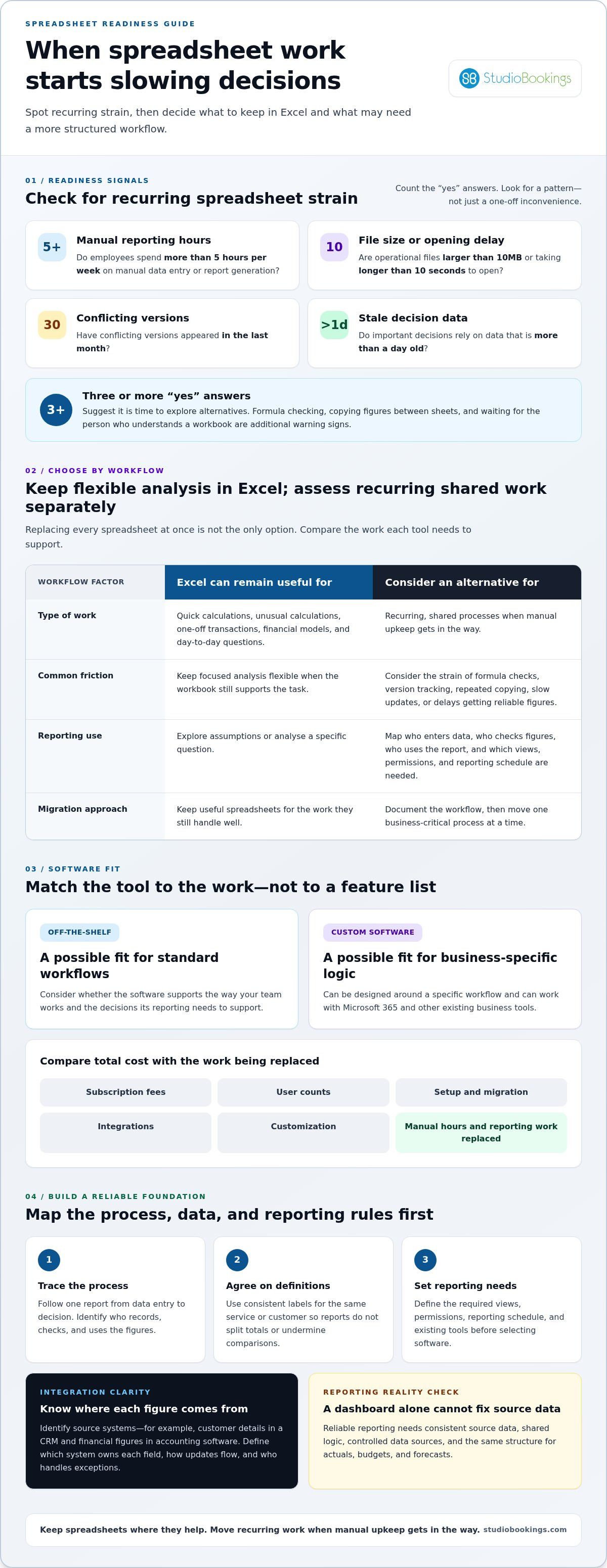
For a small business in the US, spreadsheet alternatives have no single standard cost. Subscription fees, user counts, setup, migration, integrations, and customization all affect the total. Compare these costs with the manual hours and reporting work a new system would replace.
Spreadsheets reach their limits when routine work becomes harder to trust, maintain, or share. Delayed or inaccurate reports can weaken business decisions.
Use these readiness checks: Do employees spend more than 5 hours per week on manual data entry or report generation? Are operational files larger than 10MB or taking longer than 10 seconds to open? Have conflicting versions appeared in the last month? Do important decisions rely on data more than a day old? Three or more “yes” answers suggest it’s time to explore alternatives. Formula checks, copying figures between sheets, and waiting for the person who understands a workbook add further warning signs. For teams deciding what to do when you outgrow spreadsheets, these checks help separate occasional inconvenience from recurring workflow strain.
To evaluate your needs, identify the process, people, and decisions a new tool must support. This keeps the focus on workflow fit rather than a long feature list.
Map one reporting process from data entry to decision. For example, note who records class attendance, who checks membership figures, and who uses the final report. Then define the required views, permissions, reporting schedule, and existing tools. Identify manual steps that cause rework, such as copying figures into separate sheets for each manager. Agree on terminology, too. If teams use different labels for the same service or customer, reports may split totals and undermine comparisons.
A business intelligence dashboard displays selected measures, while data architecture determines how figures are organised and maintained. A dashboard alone cannot fix inconsistent source data or fragmented reporting.
For example, a dashboard may display revenue clearly but still rely on manually maintained mappings or budgets in separate files. A stronger reporting foundation centralises shared logic, controls data sources, and uses the same structure for actuals, budgets, and forecasts. Agree on definitions first. Otherwise, teams may label the same service differently and produce totals that cannot be compared reliably.
Custom software can connect a business workflow with tools such as Microsoft 365, accounting systems, and CRM platforms. Integration can reduce repeated manual copying between systems.
Trace where each key figure comes from and where it needs to appear. For instance, identify whether a report draws customer details from a CRM and financial figures from accounting software. Define which system owns each field, how updates flow, and who handles exceptions. Clear rules help integrations move consistent data instead of spreading mismatched records.
Excel’s worksheet capacity is only one measure of whether it still fits your operation. A workbook can become difficult to use before it runs out of rows, especially as formulas, linked sheets, and repeated reporting tasks accumulate.
Row limits matter when records no longer fit cleanly in one table. Splitting class attendance by month or memberships by location may seem manageable at first. But separate files make it harder to compare periods, maintain a current version, and produce a complete answer. More rows can reveal a weak workflow rather than solve it.
Performance depends on how a workbook is built and used. Formulas across large ranges, links between sheets, and repeated copying can slow routine updates. A studio manager may have to wait for a report to recalculate before reviewing attendance or membership trends. Track the task, file, and delay involved. This gives you a practical comparison when evaluating another system.
File size needs context, too. A growing workbook may contain old exports, duplicate records, images, or unnecessary calculations. Before replacing it, separate the data needed for current reporting from archived material. Then test a clean copy. If it still performs poorly, the bottleneck may be the workbook structure or process, not just its size.
Adoption matters as much as technical capacity. If staff rely on Excel exports, a new system should preserve a familiar way to review or share information where that fits the workflow. Explain what changes, who owns each task, and how the new process answers familiar questions. For example, compare the same attendance report in both systems. Clear examples help staff learn without relying on one person to explain every sheet.
Excel can remain useful for focused work. Keep it for tasks such as:
• Testing an unusual calculation before changing a standard report.
• Exploring assumptions or analysing a one-off transaction.
• Building a financial model or working through a day-to-day question.
The goal isn’t to eliminate every spreadsheet. Keep Excel for flexible analysis, and move recurring, shared processes when their manual upkeep gets in the way. For a studio managing cycling or rowing classes, cycling and rowing studio software may provide a more structured home for routine operations.
Growth brings more reporting needs, not just more rows. A studio adding locations, departments, or budget owners may need separate views and consolidated totals. Each new view can bring different definitions, permissions, and exceptions. These connections make reports harder to maintain consistently across separate sheets.
For example, one location may use a different label for a class type than another. Those labels can split totals and make comparisons unreliable. If everyone uses agreed definitions for locations, services, and revenue, reports can answer the same question consistently. Set those rules before building new reporting workflows.
More entities also complicate financial reporting. Consolidating figures may involve different accounting systems, charts of accounts, currencies, intercompany positions, and local adjustments. A budget-versus-actual report must align those classifications before its numbers can be compared. One workbook can hide these differences behind manual mappings, leaving the next person unsure which assumptions shaped the total.
Growth can also create new reporting demands:
• Department managers need views limited to their own budgets.
• Leaders need consolidated figures across locations or entities.
• Budget holders need access to forecasts alongside actual results.
• Teams need management reports using consistent accounting classifications.
Each added view can create more versions, questions, and maintenance. If one manager filters a workbook differently, two reports may show conflicting numbers. Copying data manually between files can delay decisions while staff find the right version and reconcile totals. The issue isn’t simply a slow report; it’s losing confidence in what the report says.
Scalable reporting depends on repeatable processes that more than one person understands. A reporting specialist can help map source systems, key figures, and the decisions each report supports. For example, documenting how class revenue moves from its original record into a location-level budget makes assumptions visible. That expertise is useful when definitions differ or consolidation becomes more complex.
Before expanding a reporting setup, list the entities, teams, and decisions involved. Then agree on what each key measure means, who owns its source, and which users need access. For example, define whether a location report groups revenue by service, accounting category, or both. Clear rules reduce hidden discrepancies and make the process easier to maintain as responsibilities change.
A scalable system keeps shared logic central and uses controlled data sources. Actuals, budgets, and forecasts should follow the same reporting structure, so managers can compare like with like. If new locations or budget owners require constant workbook edits, that maintenance signals a need for a more structured process.
Replacing every spreadsheet at once can disrupt work that still runs smoothly. Move one shared process at a time, such as weekly class attendance reporting, and keep its spreadsheet available during the transition. Running both versions side by side helps teams compare results, spot missing steps, and build confidence before retiring the old process.
Start by documenting how the process works today. Follow one record from entry to final report. Note who enters it, which fields they use, what formulas or manual adjustments follow, and who relies on the result. For example, a location manager may record attendance while an owner uses totals to plan staffing. These steps show what the replacement must support.
Address differences between departments before migration. Two teams might use different labels for the same class type, or one location might record cancellations separately. Copying both methods into a new tool preserves the inconsistency. Agree on shared definitions first, then document any genuine exceptions and who approves them.
A useful process document identifies:
• The owner of each master list, such as locations, class types, or memberships.
• The source of each key figure and the person responsible for updates.
• The steps that connect source data to reports, including manual adjustments.
• The report users, decisions supported, and access each role needs.
Next, choose a process with a clear boundary and visible outcome. A recurring attendance report is easier to test than an entire finance workflow involving separate systems. Define what a correct result looks like, then compare the new output with the spreadsheet using the same underlying records. Investigate any differences before changing the official process.
Keep the old spreadsheet active during the comparison period. Document which version is authoritative, who can make changes, and how staff should report a mismatch. Once the new workflow produces consistent results and users can complete their tasks, make it standard. Archive the spreadsheet rather than leaving two competing sources in circulation.
Automation should follow process clarity, not replace it. First agree on field names, data ownership, and how to handle exceptions. Then connect systems or automate repeated transfers where those rules are stable. If one department enters “intro class” and another enters “trial,” automation may move both labels faster without fixing the reporting difference.
Finally, assign ongoing ownership. Name the person responsible for updating shared lists and reviewing key figures. Give another team member enough documentation to maintain the process when the owner is away. This approach lets you replace a business-critical spreadsheet incrementally while keeping Excel for individual analysis and ad hoc work.
Databases organise structured records, project management tools track tasks, and business software supports broader workflows. Spreadsheets combine flexible calculations with tables, but teams often have to maintain their own formulas, updates, and reporting steps.
Off-the-shelf software suits processes that already follow a common pattern. It can provide a ready-made way to handle tasks such as scheduling, memberships, or reporting. The trade-off is adaptation: your team may need to adjust its workflow to fit the platform. That works well when the new process still supports the decisions your business needs to make.
Custom software makes more sense when business-specific rules drive the work. For example, a company might need an approval path or reporting logic that standard tools don’t support. A custom tool can reflect those requirements instead of forcing staff to recreate them through spreadsheets and formulas. It also requires upfront investment, so weigh that against the ongoing time spent managing a mismatched process.
Start your comparison with the process, not the product. Write down what happens from the first record to the final report. Note which steps depend on Excel formulas, who approves exceptions, and what information must reach Microsoft 365, accounting software, or a CRM. This reveals whether a standard platform covers the workflow or leaves a critical gap.
Compare options against practical criteria:
Can staff complete the existing process without unnecessary workarounds?
Are your rules standard, or do they shape the value of the process?
Can the tool connect with the systems that hold essential records?
Do reports use consistent definitions and data sources?
Can more than one person maintain the workflow and its key information?
A useful test is to map one recurring process, such as monthly budget reporting. If the platform handles the steps with minor adjustments, off-the-shelf software may be the simpler fit. If each report depends on unique mappings and exceptions, custom software may better suit the work. The decision starts with how much the process relies on business-specific logic.
Implementation should account for the people using the system, too. Identify who enters records, who reviews outputs, and who resolves exceptions. A tool that fits the process on paper can still create friction if responsibilities are unclear. Documenting those roles gives the team a shared way to use and maintain the new workflow.
For studio owners comparing tools for recurring operations, explore software options for your studio as part of the platform assessment.
StudioBookings offers cloud-based Yoga Studio Software for studios ready to replace spreadsheet-led class administration with a dedicated system. It brings class scheduling, memberships, payments, and staff management together in one dashboard, giving you a focused way to manage studio operations.
The same platform supports Pilates and Barre, Fitness and HIIT, and Pole and Dance studios. If your spreadsheets mainly track classes, member records, or staff tasks, software designed for studio operations may fit better than general-purpose reporting tools. StudioBookings also offers a mobile app for studio owners and members, extending access beyond the desktop dashboard.
Keep spreadsheets for flexible calculations if they’re still useful, and use software for recurring studio workflows. Visit StudioBookings to explore software for your studio.
Deciding what to do when you outgrow spreadsheets is an opportunity to create a smoother way of working, not simply replace a familiar file. Choose the process that creates the most friction, then define what a useful improvement would look like for your team. That gives your next software decision a clear purpose.
For studio operations, the right fit should support the work your team handles every day. StudioBookings offers Yoga Studio Software, Pilates and Barre Studio Software, and Fitness and HIIT Studio Software. Explore whether one of these options fits your studio’s needs and preferred workflow.
Contact StudioBookings to discuss your needs. A focused next step can help you move forward with clarity and build a system that works better as your studio grows.
No. Excel works well for flexible calculations, one-off analysis, and simple recurring reports. For example, a manager can use a sheet to test how a schedule change affects projected income. Problems arise when the file becomes the main record for a process involving several people, approvals, or regular handoffs. Keep Excel for exploratory work; use purpose-built software when the workflow needs consistent shared records.
Consider custom software when a core process depends on rules that standard platforms cannot support without workarounds. For example, a business with a unique approval path might repeatedly modify templates to meet its needs. First identify the required logic, its users, and the decisions it supports. Custom development makes sense when fitting the process matters more than adopting a standard workflow, and the business can support the investment and maintenance.
A clear sign is when a routine task is no longer repeatable without its original spreadsheet author. For example, a new manager might not know which tab holds the current client list or why a total excludes certain records. Track the questions staff ask while completing the task. If the same explanations and manual fixes keep recurring, the process depends too heavily on undocumented knowledge.
Formula edits, accidental deletions, inconsistent data entry, and unclear file ownership can all disrupt a workflow. Imagine someone sorting a customer list without including the adjacent booking column. Names and bookings can become mismatched, even if the spreadsheet still opens normally. Separate permissions, validation rules, and controlled handoffs help reduce these risks. A spreadsheet alone doesn’t provide a complete workflow for managing these safeguards.
Options include databases for structured records, project management tools for task ownership, and business software designed around specific operations. A studio that needs to coordinate classes, memberships, payments, and staff can consider studio management software instead of assembling separate sheets. StudioBookings offers Yoga Studio Software, Pilates and Barre Studio Software, and Fitness and HIIT Studio Software for studios seeking tools focused on these operations.
Begin by identifying which records the new system needs, such as active customer details rather than obsolete test rows. Standardise names and categories, then map each spreadsheet column to its destination field. Import a sample and compare representative records, including unusual entries and blank fields. Keep an unchanged copy of the original workbook during the transition, and document any records that need manual correction.
Choose based on the work, not headcount alone. List each role that enters, reviews, or uses the information, then match permissions and reports to those responsibilities. A small team with separate scheduling and finance tasks may still need distinct views. A larger team with one standard process might need fewer custom rules. Compare options based on required integrations, data ownership, reporting, and the effort needed to maintain them.
Migration can omit fields, misread categories, or leave duplicate records. Staff may also keep using the old workbook out of habit. Protect against both by retaining an untouched source copy, testing sample records, and naming one authoritative system. Give staff a short, task-based guide, such as how to enter a booking or correct a customer detail. Keep the old process available during a controlled comparison, then clearly retire it.